
Create a Scheduled Job
Scheduled Jobs allow marketers to automate the execution of a Loyalty platform Action, such as sending an email message, updating Members' Tiers, or refreshing Calculated Attributes.
To create a Scheduled Job:
-
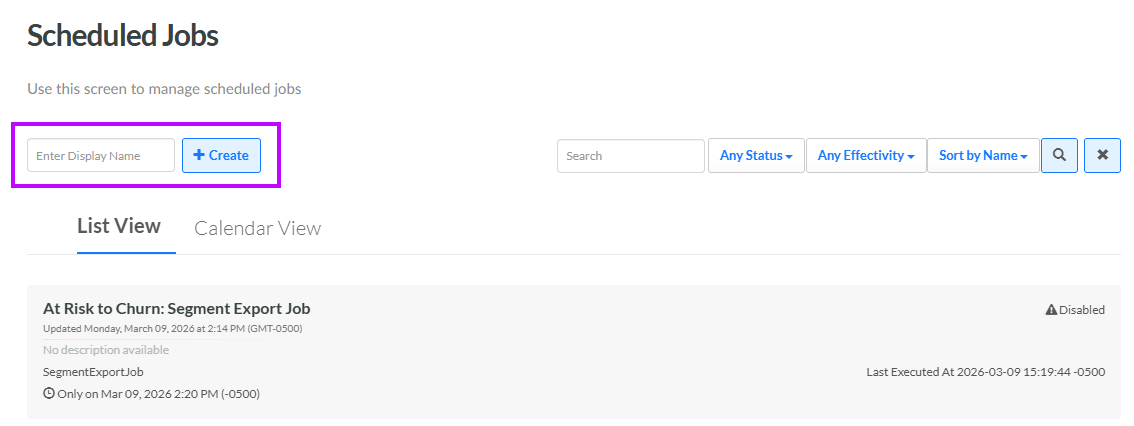
Select Admin from the top navigation bar, then select Jobs > Scheduled Jobs from the side navigation menu. The Scheduled Jobs screen is displayed. By default, List View is selected.
-
In the Display Name field, enter the name of the new Scheduled Job.
-
Click Create. The Edit Scheduled Job pop-up window is displayed.
-
The Label field is populated with the value you entered above; optionally edit this value.
-
The Internal Name is automatically populated based on the Display Name value. This field is not editable by default. To edit the Internal Name, check Edit Internal Name. A confirmation dialog box is displayed; click Ok. Edit the Internal Name value.
-
Optionally, in the Description field, enter a description of this item.
-
The Recurrence drop-down menu allows you to define when, and how often, you want this Schedule Job to execute. From this menu, select one of the following options:
-
Repeat: Execute the Scheduled Job based on a recurring schedule; see Recurring Schedule below for details.
-
Once: Execute the Scheduled Job once. Click into the Execute Once On field, then select the date and time from the calendar pop-up. Select the time zone from the Time Zone drop-down menu.
-
On Demand: Execute the Scheduled Job only when specified by a user.
-
-
To enable this Scheduled Job, toggle Active to On.
-
Optionally, if you want the platform to log the results of each Scheduled Job execution, select Yes from the Log Every Run drop-down menu.
-
The execution priority for a Scheduled Job is typically set to Default. If you need this Scheduled Job to take priority over other Scheduled Jobs, select High from the Priority drop-down menu.
-
Optionally, in the Notification Emails field, enter one or more email addresses for the recipients who should receive notification emails about this Scheduled Job. For more information about the types of email notifications generated by the platform, see Getting Started with Scheduled Jobs.
-
The Calendar Background feature lets you assign a custom color to this Scheduled Job when viewing the Scheduled Jobs screen in Calendar View. Optionally, to assign a custom color, click the color swatch. From the color picker pop-up, select the desired color. Click anywhere outside the color picker pop-up to close it.
-
From the Action Type drop-down menu, select the desired Action that this Scheduled Job should execute. The Parameters section is displayed, showing all of the parameters related to the selected Action.
-
Enter or select the desired parameters. For more information on how to configure the specific parameters for each of the different Action types, see Configure Scheduled Job Action Parameters.
-
Click Save.
Recurring Schedule
If you selected Repeat above, the following options are displayed, allowing you to define the recurring schedule either through the user interface, or using a CRON expression.
-
Optionally, from the Schedule Composer drop-down menu, select and configure an interval:
-
Hour: Select the minute past the hour at which to run. For example, "every hour at :30 past the hour."
-
Day (recommended): Select the time at which to run using a 24-hour clock. For example, "every day at 14:00."
-
Week: Select the day of the week, and the time at which to run. For example, "every Monday at 14:00."
-
Month: Select the day of the month, and the time at which to run. For example, "on the 15th of every month, at 14:00."
-
Year: Select the day of the month, the month, and the time at which to run. For example, "every year on March 15, at 14:00."
-
-
Optionally, check Advanced to enable the CRON Expression text field, and enter a custom CRON expression.
-
In the From and To fields, enter the start date and time, and the end date and time, for the recurring schedule.
-
From the Time Zone drop-down menu, select the time zone to use.
